Live Logs
Tail log files to monitor security events in real time.
Interactive Demo
Try it on the real screens: click the highlighted spot to do each step, or press Watch it.
Overview
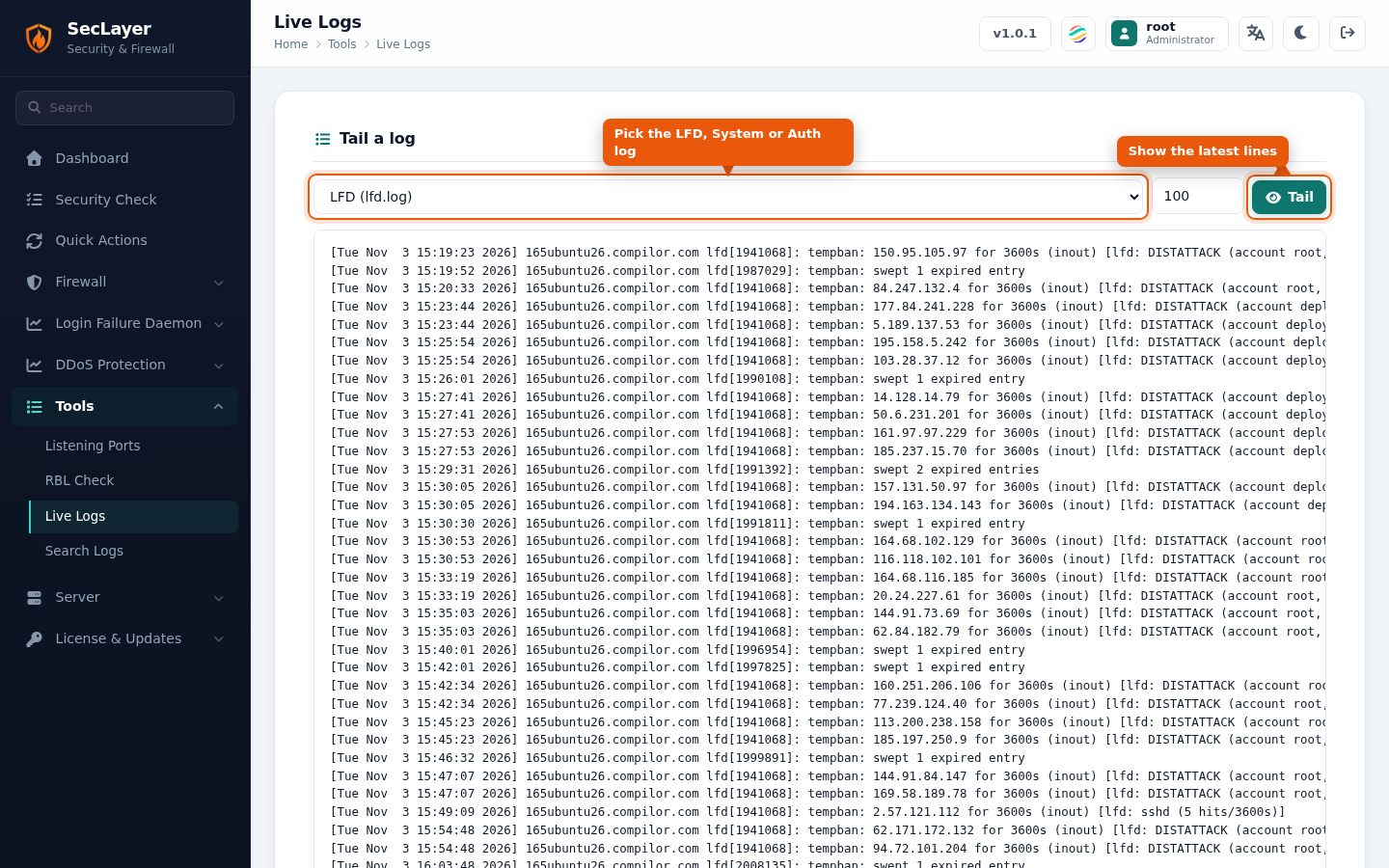
Select a log file, set the number of lines to display, and click Tail to tail the file. Useful for live monitoring and troubleshooting.
How to Use
- Navigate to Tools > Live Logs.
- Select a log file from the dropdown: LFD (lfd.log), System (messages) or Auth (secure).
- Set the number of lines to display (default 100, range 10–2000).
- Click Tail to view recent entries.